Showing posts with label Windows. Show all posts

Tuesday, July 22, 2014

Scientists at NASA and the USGS do not know the difference between Windows ME and Windows 2000


As another example of scientists not understanding the computer technology they are using, NASA's Land Processes Distributed Active Archive Center and the USGS (U.S. Geological Survey) Earth Resources Observation and Science Center are apparently ignorant of elementary knowledge about Microsoft Windows operating systems. In their User Manual for their MODIS Reprojection Tool Swath they confuse Windows ME (Millennium) with Windows 2000.
The second section is relevant to Windows systems and includes specifics for 95/98/2000 and NT/ME/XP. [...]  
Windows 95/98/2000 users must edit the AUTOEXEC.BAT file to add the path information and set the MRTSWATH_DATA_DIR variable. [...] 
Windows NT/ME/XP users must edit their user keys to add the MRTSwath PATH, MRTSWATH_HOME, and MRTSWATH_DATA_DIR to the system variables.
Windows ME and Windows 2000 are two very different operating systems built off different code bases and confusing them like this is a sign of an amateur programmer who was never professionally trained. Windows ME (Millennium) was the last of the Windows 9x line of operating systems following Windows 98. While Windows 2000 is an NT-based operating system originally called Windows NT 5.0.

The proper way to list these operating systems would be,
Windows 95/98/ME 
Windows NT/2000/XP
These are not just typos in their documentation but are actually errors in their installation file (install.bat) included in their MRT Tool Swath archive file (MRTSwath_download_Win.zip).
:AUTOEXECMOD 
REM Processing Windows 2000.
REM Modify the user's AUTOEXEC.BAT file.
echo Windows 2000 installation ...
IF EXIST "c:\autoexec.bat" GOTO AUTOEXECEXISTS 
echo Updating C:\AUTOEXEC.BAT.
GOTO MODIFYAUTOEXEC 
:AUTOEXECEXISTS 
echo Updating C:\AUTOEXEC.BAT (old version saved as AUTOEXEC.MRTSWATH).
copy c:\autoexec.bat c:\autoexec.mrtswath 
:MODIFYAUTOEXEC 
echo set MRTSWATH_HOME="%MRTSWATHDIRECTORY%">> c:/autoexec.bat
echo set Path="%MRTSWATHDIRECTORY%\bin;%%Path%%">> c:/autoexec.bat
echo set MRT_DATA_DIR="%MRTSWATHDIRECTORY%\data">> c:/autoexec.bat
This matters because the fundamental requirements of the specifications for applications to run properly on Microsoft Windows 2000 is quite clear,
Chapter 1. Windows Fundamentals

Summary of Windows Fundamental Requirements

Rationale
Passing these requirements will help ensure that your application runs in a stable, reliable manner on Windows operating systems.
Customer benefits 
Customers can be confident that a compliant product will not adversely affect the reliability of the operating system.

Requirements

5. Do not read from or write to Win.ini, System.ini, Autoexec.bat or Config.sys 
Your application must not read from or write to Win.ini, System.ini, Autoexec.bat, or Config.sys. These file are not used by Windows 2000 systems
To properly set the Path in Windows 2000 you do so using the Desktop GUI or the registry.

Hacks who were never professionally trained in computer science like Mr. Mosher do not know these very basic things and instead ignorantly spread this misinformation.
Unless you are in fact running Win2000 or NT then #1 will be the choice you want to make. If you are running Windows2000 then the install is going to make a change to autoexec.bat. If you are running NT, XP or anything later than XP ( Vista, 7 etc) Then there is no autoexec.bat to change and the installer will be modifying other files to do the install.
Any competent and professionally trained programmer would have noticed this elementary error. The problem is most of the people creating and using these scientific data tools have no formal computer science training and do not know how bad they really are. This was confirmed in an article in the journal Nature.
[A]s computers and programming tools have grown more complex, scientists have hit a "steep learning curve", says James Hack, director of the US National Center for Computational Sciences at Oak Ridge National Laboratory in Tennessee. "The level of effort and skills needed to keep up aren't in the wheelhouse of the average scientist."

Greg Wilson, a computer scientist in Toronto, Canada, who heads Software Carpentry — an online course aimed at improving the computing skills of scientists — says that he woke up to the problem in the 1980s, when he was working at a physics supercomputing facility at the University of Edinburgh, UK. After a series of small mishaps, he realized that, without formal training in programming, it was easy for scientists trying to address some of the Universe's biggest questions to inadvertently introduce errors into their codes, potentially "doing more harm than good". [...]

"There are terrifying statistics showing that almost all of what scientists know about coding is self-taught," says Wilson. "They just don't know how bad they are."

As a result, codes may be riddled with tiny errors that do not cause the program to break down, but may drastically change the scientific results that it spits out.
The lack of basic computer science knowledge like this is so prevalent in the scientific community that this misinformation apparently made it into a scientific publication.

Addendum: Despite being updated in December of 2010, the MRT Tool Swath User Manual fails to mention that no one should be using Windows NT (Support ended in 2004), Windows Millennium (Support ended in 2006) or Windows 2000 (Support ended in July of 2010) since they are all obsolete operating systems that do not receive support or security updates from Microsoft anymore.

Monday, May 11, 2009

Windows XP Supported until 2014

Microsoft ended Windows XP's Direct OEM and Retail License Availability on June 30, 2008 and System Builder License Availability on January 31, 2009. Which means you will be unable to purchase new copies of Windows XP (except for those still for sale on the market) after this date. Recently Microsoft ended "Mainstream Support" on April 14, 2009 but will continue "Extended Support" of Windows XP Home, Media Center and Professional Editions through April 8, 2014.
"Microsoft will continue to support Windows XP until 8 April 2014 – about five years from now. So what are the differences between Mainstream and Extended?

Mainstream Support provides both consumers and enterprise customers with a full offering of support including complimentary support, design change requests, security updates and other kinds of updates for the product.

Extended Support does alter the range of support a bit, but for the vast majority of customers the essential core remains the same. For example, customers will continue to receive free security updates and can call in for paid support until the second Tuesday in April of 2014."
For a vast majority of users (Over 60% still use Windows XP) , this can mean a savings of a few hundred dollars by not having to buy Windows Vista. You can rest assured that you will receive free security updates until April 8, 2014. Lack of security updates is one of the main reasons people are forced to upgrade. Windows 2000 users will be faced with this problem on July 13, 2010 when extended support runs out. Considering Windows XP is a very reliable operating system with extensive free software and free games available for it, there is no compelling reason to upgrade to Vista unless you require DirectX 10 game support.

References:
Extended Support Begins for Windows XP—Support for XP Continues Until 2014 (Microsoft Support Lifecycle Blog)
Microsoft Support Lifecycle (Microsoft)
Windows Life-Cycle Policy (Microsoft)
XP Freeware - A Windows XP Freeware Guide (Optimize Guides)
XP Games - A Windows XP Freeware Game Guide (Optimize Guides)

Monday, June 04, 2007

Irresponsibly Ripping Apart Windows


There are some people out there apparently so smart they think they can do things better than the programmers at Microsoft. These hacks irresponsibly recommend ripping out components of Windows to make 'lighter' versions with absolutely no clue as to the consequences of their actions. They mislead others and cause untold amounts of headaches for support staff of PC and software vendors.

I've been dealing with end user support for a very long time and have consistently found the most obscure problems to be user induced. Whether the end user mindlessly overclocked, applied useless mythical 'tweaks' or the current trend of irresponsibly and dangerously ripping out core components of their operating system you can be sure of who will be blamed first when there is a problem, Microsoft.

Microsoft programmers believe it or not include the files they do for a reason. The components they recognize as safe to remove can be done so through the add or remove programs option in the control panel. The rest should not be removed unless you can verify with the programmer who added it that it is safe to remove on your system. These 'hacks' who recommend these 'light' builds or ripping out core components have done no such thing. They have no idea what applications, components or features of Windows require which files let alone third parties. They have no idea of the full consequences of removing component 'X'. If they claim they do they are either fools or lying. When you install an application, game or device you need to realize that they were tested only on standard installs and may require files to be present that you are completely unaware of. This can lead to the application, game or device to not work, generate an error or crash. Removing a critical system file or component can lead to system instability, errors or even worse, data loss.

Software Bloat

Window is designed to be everything to everybody and thus includes various components and applications you may not use. This inevitably leads to some perceived 'bloat' but the problem is this can only properly be rectified by Microsoft programmers not the online community of hacks. What may seem as 'bloat' to one person is a necessary application, compatibility fix or driver to another. Many files are present for backwards compatibility with poorly written applications that Microsoft has gone out of their way to ensure works, short of rewriting the old application themselves. In the end Microsoft has learned that it is better for something to work out of the box than deal with the support issues of it not.

How many files or registry entries you have or Window's Services running does not effect your general system performance. These Myths are widely misunderstood by the ignorant hacks who spread them:

"Deleting files does not improve application, gaming or system performance. All it does is increase your available disk space. While AntiVirus and AntiSpyware scan times and general disk search times can be reduced, these are not what people associate with improved performance."

"A few hundred kilobytes of unused keys and values causes no noticeable performance impact on system operation. Even if the registry was massively bloated there would be little impact on the performance of anything other than exhaustive searches."

"Disabling other unnecessary services in general has only one affect on performance and that is reduced Windows XP boot times."


Trail and Error

This is used by people who have little knowledge in the problem area and are essentially guessing. In the computer field this is a poor substitute for Researching and an absolute waste of time. Everything in your computer from the hardware to software has already been created by someone and there is someone who knows how it works. With Windows this is Microsoft. Trial and error makes no attempt to discover why a solution works, merely that it is a solution (sometimes not) but not all solutions, and certainly not the best solution. This is what makes using Trial and Error useless with computer software. Hacks who rely on this method have a poor understanding of computers, logical devices in general and lack proper researching skills. I have been doing this for well over 15 years and extensively research and learn how something works before assuming how it works or irresponsibly guessing. I have read many books, attended many seminars, courses and know where to reference the information I need. "Trial and Error" Techs, Administrators and End Users are worthless and have no business giving advice to anyone else. These hacks are the equivalent of a car mechanic who rips out the "useless" radiator to save on "weight". Hey but the car still seems to run!

nLite

nLite is a powerful free program that can be useful for service pack integration, unattended setups and driver integration. I have used it extensively and it works fine for these tasks. However this program also allows unknowledgeable users to carelessly rip out components of Windows, all the while thinking they are improving performance by reducing the install size without any fully documented, reproduceable and verifiable proof of any performance gains. Least of all anyway to guarantee system stability, application compatibility and error free operation due to their actions. The latter is impossible by all but the Microsoft programmers who put the files there to begin with.

Until Microsoft fully documents each and every reason for being, interaction, association and dependency of each file and registry value for Windows in depth, ripping apart Windows will continue to be a fools errand. One that no sane person should ever attempt.


Sunday, January 14, 2007

Windows XP More Secure than Linux


Anyone who tracks security vulnerability reports knows of the ridiculous amount that reference holes in Linux. For whatever reason this is never talked about and Linux gets this magic aura of invulnerability. Part of the confusion lies with the complexity of the open source Linux model that separates Linux "Distributions" from Linux "Kernel" vulnerabilities. Now if you start looking into and adding up Linux "Distribution" vulnerabilities that can take you into the hundreds upon hundreds of security holes that are never talked about. To simplify things I took the latest Linux Kernel v2.6.x and compared it to Windows XP. This is more than a fair comparison for the shocking results to follow.

As with Firefox, Linux vulnerabilities are frequently lumped together in single advisories misleading the true vulnerability count:


Windows XP -170 Advisories = 213 Vulnerabilities.
Linux Kernel v2.6.x - 108 Advisories = 231 Vulnerabilities.

Even with open source advocates finally admitting that Linux is insecure they still try to claim it is more secure than Windows. Too bad this is now proven to be another myth.


Windows XP is more secure than Linux and sexier ;)

Thursday, November 03, 2005

Block CD/DVD DRM and Rootkits Easily

Sony recently showed the extent to which they will go to attempt to copy protect their Music CDs. The latest use of Rootkits in their DRM has gone way too far. I am personally boycotting Sony Products. Stopping these sorts of infections and getting around DRM is much easier then you think. Simply disabling the Windows Autorun feature blocks them from installing cold. Losing the convenience of Autorun is a small price to pay for the peace of mind that your computer will not become the dumping ground for future DRM Viruses and Rootkits that can cripple the ability to use your CD/DVD drive.

Disabling Autorun
For DRM Viruses and Rootkits to install they must be executed. Music CD/DVDs do this by utilizing the built-in Autorun feature of Windows that lets you put a disc in your drive and have it play automatically. This convenient feature also lets the DRM software execute and infect your computer. Simply disabling Autorun blocks the DRM software from executing but allows you to still manually listen to the music. This does require an additional step on your part to open the CD/DVD from your media player but it is much more secure.

Windows XP
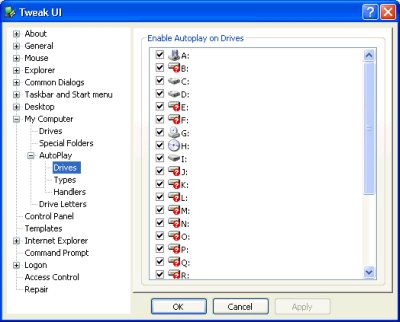
Download Tweak UI XP, install and run. Go to "My Computer", "AutoPlay", "Drives" then uncheck each drive letter for each drive you want AutoPlay disabled on.


Windows 95/98/Me/NT/2000
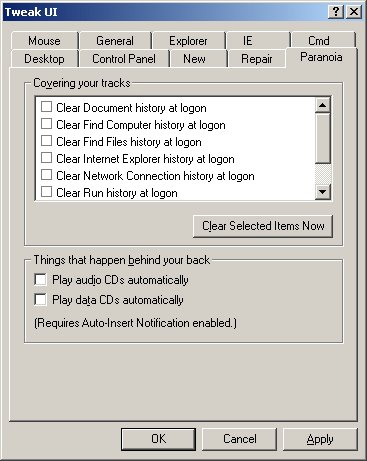
Download Tweak UI v1.33, install and run. Go to the "Paranoia" tab, uncheck "Play audio CDs automatically" and "Play data CDs automatically".


Monday, October 03, 2005

CCleaner Cripples Application Load Times

Recently CCleaner has added an internet urban legend as a cleaning option, "Old Prefetch data". Cleaning the Prefetch folder is an internet Myth that simply will not die due to the gross ignorance of many people in regards to how Windows XP Prefetching works. These same people generally recommend other bogus advice such as disabling Windows Prefetching completely and adding /Prefetch:1 to desktop shortcuts.

"Bottom line: You will NOT improve Windows performance by cleaning out the Prefetch folder. You will, in fact, degrade Windows performance by cleaning out the Prefetch folder." - Source

CCleaner for the most part is a good application, it quickly and easily removes temporary and unused files from Windows. It has a nice interface that clearly shows what has been "cleaned". On neglected systems this can free hundreds of Megabytes of harddisk space. Apparently in the authors quest to clean everything and anything, he blindly ignored how Prefetching works.

Prefetching
"When a Windows XP-based system is booted, data is saved about all logical disk read operations. On later boots, this information is used to pre-fetch these files in parallel with other boot operations. During boot and application launch, a Windows system demands and pages a sizable amount of data in small chunks (4K to 64K), seeking between files, directories, and metadata. The Logical Prefetcher, which is new for Windows XP, brings much of this data into the system cache with efficient asynchronous disk I/Os that minimize seeks. During boot, the logical prefetcher finishes most of the disk I/Os that need to be done for starting the system in parallel to device initialization delays, providing faster boot and logon performance.

Logical prefetching is accomplished by tracing frequently accessed pages in supported scenarios and efficiently bringing them into memory when the scenario is launched again. When a supported scenario is started, the transition page faults from mapped files are traced, recording which page of a file is accessed. When the scenario has completed (either the machine has booted or the application started), the trace is picked up by a user-mode maintenance service, the Task Scheduler. The information in the trace is used to update or create a prefetch-instructions file that specifies which pages from which files should be prefetched at the next launch.

The user-mode service determines which pages to prefetch by looking at how successful prefetching has been for that scenario in the past, and which pages were accessed in the last several launches of the scenario. When the scenario is run again, the kernel opens the prefetch instructions file and asynchronously queues paging I/O for all of the frequently accessed pages. The actual disk I/Os are sorted by the disk drivers to go up the disk once to load all pages that are not already in memory. This minimizes seeks, cuts down on disk time, and increases performance. The kernel also prefetches the file system metadata for the scenario, for example, MFT entries and directory files. Because prefetching is useful only when the required data is not in memory, the applications that are launched frequently are not traced and prefetched each time." - Source

Prefetching Facts
1. Prefetching is enabled by default in Windows XP.
2. Prefetching is configured optimally by default.
3. Prefetching will significantly improve application load times.
4. The Prefetch (.pf) files are not a cache, they are reference files.
5. The Prefetch (.pf) files do not preload/cache anything upon Windows startup that does not normally load at startup.
6. Only one Prefetch (.pf) file is referenced during startup = NTOSBOOT-B00DFAAD.PF
7. Only one Prefetch (.pf) file is created per application.
8. The Prefetch (.pf) files including the Layout.ini and NTOSBOOT-B00DFAAD.PF files are automatically updated.
9. The Prefetch folder is auto cleaned after 128 entries have been reached down to the 32 most used applications.
10. Notebooks running on battery power will not execute idle tasks and thus cannot further optimize or remove prefetch files.

What CCleaner does
CCleaner deletes any Prefetch file older then two weeks based on the .pf file's last access date. This is completely idiotic for a number of reasons. First you should never delete a .pf for any installed application. With the .pf file missing, that application will take up to 100% more time to load when you decide to launch it. CCleaner does this to any application you have installed on your computer but have not used in over two weeks. It makes absolutely no sense to delete these files. Why would you deliberately want to slow down any installed application's load time? It will also do this if you have not used you computer for two weeks. Second, it is quite common to disable the NTFS Last Access Time Stamp for performance reasons. I actually recommend doing this since it speeds up the file system. In this case CCleaner will delete any .pf file that was created over two weeks ago. You can clearly see how running CCleaner in this case would wind up deleting ALL your Prefetch files every two weeks. Now you are crippling every application's load time on your system instead of just the ones you have not used in two weeks. Ridiculous!

Testing
Make sure the Task Scheduler service is set to automatic. Launch an application like Firefox three times. Reboot and make sure there is a FIREFOX.EXE-XXXXXXXX.pf file in the C:\WINDOWS\Prefetch folder. If there is, launch Firefox and time it. Then delete the .pf file, reboot, relaunch Firefox and time it again. You will now see Firefox take a significantly longer time to load. Now imagine this on any other application, then imagine doing this deliberately every two weeks? Why? To save a tiny bit of HD space? It makes no sense. 128 .pf files take up maybe 5 MB of disk space.

Conclusion
Do not clean the prefetch folder! If you use CCleaner uncheck the "Old Prefetch data" option. Finally let the makers of CCleaner know they need to remove this option from CCleaner.

References
Windows XP: Kernel Improvements Create a More Robust, Powerful, and Scalable OS - (Mark Russinovich, Ph.D Computer Engineering, Microsoft Technical Fellow)
Misinformation and the The Prefetch Flag - (Ryan Myers, Microsoft Windows Client Performance Team)
One more time: do not clean out your Prefetch folder! - (Ed Bott, Author Windows Inside Out)
Kernel Enhancements for Windows XP - (Microsoft)
Benchmarking on Windows XP - (Microsoft)
Microsoft Windows XP Performance - (Microsoft)


Update, October 4, 2005:
It has been brought to my attention the makers of CCleaner want to cover up and ignore this issue. They do not want to allow a discussion of it because they know they are wrong and cannot win an argument where the facts are against them. They either delete any topics in their forums brought up about the issue, lock them or ban the users who bring it up. I recommend instead to bring this issue up in all forums where they will allow the discussion and you can inform people of how prefetching works and why CCleaner should have the "Old Prefetch data" option removed.

Update, August 12, 2006:
CCleaner v1.32.345 has moved the "Old Prefetch data" option to the advanced section and now it is not selected by default. However there should still be a warning added when you select it. And of course it is still not recommended to use this option for any reason as it is still useless and will do nothing but slow down your system. But at least this is an improvement and should prevent many users from unknowningly slowing there system down everytime they run CCleaner.

Sunday, December 05, 2004

Windows Wish List

Computing zealots rarely win many followers - as I need to periodically remind the more "enthusiastic" members of my Linux User Group. Windows has its place, so does Unix, so does MacOS. The ultimate goal of a computer user is to maximize functionality. Unfortunately, there simply isn't the "perfect OS".

Many articles have been written about how Linux could be made better. Those articles usually compare Linux to Windows with the arrogant assumption that Windows does “it” perfectly and in order for Linux to have more adoption it should model itself after Windows. In Windows, everyone out of the box is treated like a newbie. Someone with the ego of a Power User resents this treatment. On first boot, the user can't do anything until they click the Start button. Now we know that a rat in a maze feels like. My purpose for writing this is to share a wish list of features that would make Windows more usable and less hated by the computing elite.

1. Decent file system.
For a power user, the simple fact that a file system needs to be defragmented instantly puts that file system in the "sucks" category. This is one area in which Linux beats Windows hands down. Linux has literally dozens of file systems to choose from. The best ones are journaled and use advanced oct-tree algorithms to balance the load on hard drives. They keep up with available disk space and only fragment files when disk space is critically low. Journaling allows a file system to recover from an unexpected power loss with a high confidence of no data loss. Microsoft has been promising a new file system for over a decade now. WinFS was supposed to be part of NT4 and even delayed its launch. WinFS was supposed to be part of Win2000 and even delayed its launch. WinFS was supposed to be part of WinXP and even delayed its launch. (See a pattern?) IBM proposed the journaled file system during its OS/2 days, but Microsoft and IBM stopped collaboration before IBM could finish it for them. Probably the most attractive issue is the ability of the Linux user to choose which file system they want depending upon function. Ext3 is fine for the casual user. A Power User building a dedicated server will probably choose ReiserFS.

2. Internet Explorer
Internet Explorer 6 is now over 3 years old. Why doesn’t Microsoft fix it? What are they waiting for? Alternatives such as Mozilla and Opera offer great features such as tabbed browsing, pop-up blockers, smart integrated searching, and smart downloading. Is Microsoft planning to deprecate IE? If so, why is IE so entrenched into the core OS? IE is literally a window into Windows! If mal-ware can take IE, it has the OS. In 1997, Microsoft declared Netscape a non-issue with Internet Explorer taking 95% of the browser market share. Today Mozilla (and derivatives) take up 20% of the market and gaining. Why is this? I’ve been using Mozilla for the past 4 years or so because of its transparency between Windows and Linux. I didn’t realize how awful the Internet experience was for IE users until I recently had to lend a hand to a neighbor. He has a newer Dell home PC with cable Internet access. We’ve all heard the complaints from novice users: “My computer was fast when I first bought it, but now…” This poor guy’s computer was eaten up with spy-ware. To his credit he had the Norton System Works installed so he had a firewall and virus protection. We downloaded Ad-aware6 and cleaned out hundreds of recognized objects. The act of navigating the web to find Ad-aware was a miserable experience. Pop-up ads were everywhere, and Pop-under ads behind them. He asked me how to get rid of them. Another Mozilla Firefox convert was born.

3. If you know a feature will be annoying, why adopt it?
How many times have you heard someone say: "I'm so glad Microsoft put Clippy in Word!” Probably never. Who in their right mind wants an assistant to pop up and announce: "It looks like you are writing a letter. Would you like help?" Of course not! The reason it looks like I'm writing a letter is because I know how to write a letter! Now, instead of concentrating on the content of the letter I am annoyed and have to dismiss the assistant. Let's say you are having a less stressful day and have a little time to indulge the assistant and tell it to show you some letter templates. What does the little guy tell you next? "The feature you requested is not installed, please insert Disc x of Microsoft Office xx". What the hell is Microsoft thinking? Office is supposed to make your working environment more efficient. Where is the human-machine-interface research they like to brag about? This scenario has driven lots of people to alternatives such as Open Office.

4. Security.
Why do users have to acquire third party software to keep Windows secure? Shouldn't an OS be secure by design? For example, the only way to write to the system files of a Unix OS is to have root privileges. Period. The only way to acquire root privileges is to have the root password. That simple paradigm of OS management stops the vast majority of virii and mal-ware from ever gaining traction on the Unix platforms. In Windows, the system areas are openly available for anyone to write to. Anyone (including virii and mal-ware) can add and delete dynamic libraries from the System32 with impunity. This is unacceptable to a Power User. I don’t consider switching to my root account to do system maintenance an annoyance.

5. Strict Memory Protection.
In all versions of Windows NT until WinXP SP2 it’s possible for a program to write outside its memory space. For example, one can write a simple C program that writes a character, then insert a tab, then backspace more than 6 spaces. This simple program writes over whatever information is stored in the memory location immediately preceding its allocated space! Incidentally, this program instantly causes the famous Blue Screen of Death. The Java language self enforces memory protection. The Java Virtual Machine won’t let a Java program write outside its allocated memory space. This “feature” is unnecessary in Unix, but a lifesaver for Windows users. Many in the industry consider this part of the Java language to be a poke in the eye to Microsoft from Sun.

Doug - Contributing Author